Transcribe your Google Drive files
Sync a Google Drive folder into Breyta so audio and video are transcribed automatically and documents, spreadsheets, PDFs, and other files are saved in a private Synced Drive files folder with their original names after you share the folder with google-drive-sync@breyta.iam.gserviceaccount.com and give Editor access for video files.
Created by Breyta • Version 81 • 0 steps
What you get
- Sync a Google Drive folder into Breyta so audio and video are transcribed automatically and documents, spreadsheets, PDFs, and other files are saved in a private Synced Drive files folder with their original names after you share the folder with google-drive-sync@breyta.iam.gserviceaccount.com and give Editor access for video files.
Integrations
- assemblyai
- google-drive-service-account
- synced-drive-files
- Google Drive
- Breyta resources
What This Does
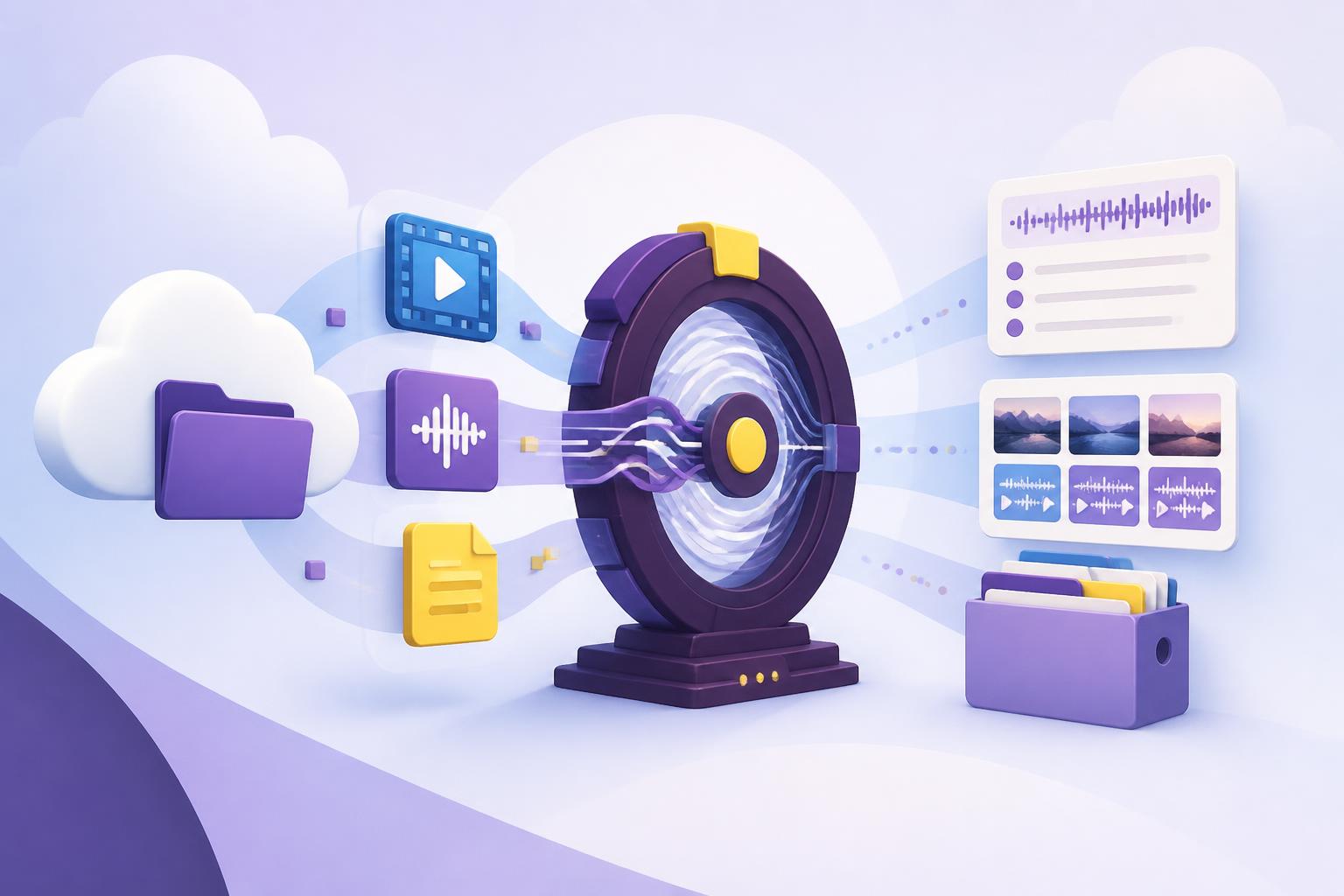
This flow keeps a Google Drive folder in sync with Breyta.
- Audio and video files are automatically transcribed.
- Google Docs, Google Sheets, PDFs, slides, chats, and other non-media files are saved in Breyta.
- Synced files keep their original file names.
- Saved non-media files go into a private Breyta storage folder labeled
Synced Drive files.
Before You Start
- Copy the Google Drive folder link you want to sync.
- In Google Drive, share that folder with
google-drive-sync@breyta.iam.gserviceaccount.com. - If the folder contains video files, give the service account Editor access.
What You Set Up
During setup, you will:
- Paste the Google Drive folder link.
- Choose how far back the first sync should look.
If you do not change it, the first sync looks back 30 days.
Start Right Away
After setup, click Run first sync now in the UI if you want the first sync to start immediately. Otherwise, the flow will wait for the next hourly sync.
Good To Know
After the first sync, the flow keeps going from where it left off. Google-native files such as Docs and Sheets are exported into a standard file format when they are saved in Breyta.
FAQ
What does the Google Drive transcription app do?
This app automatically syncs your Google Drive folders to Breyta to transcribe audio and video files while organising documents, spreadsheets, and PDFs into a private folder. It maintains your original filenames so you can find your data quickly.
How do I set up the Google Drive sync?
You'll need to share your chosen Google Drive folder with the Breyta service account email and grant Editor access for video files. Once shared, the app monitors the folder and processes any new files you add.
Which services does this workflow use?
The app integrates with Google Drive, AssemblyAI for high-quality transcriptions, and Breyta's Synced Drive files storage. These services work together to move your media from storage to text automatically.
What file types can I transcribe and sync?
The app handles various media formats for transcription along with standard office files like PDFs and spreadsheets. Every file is stored in your private Synced Drive folder with its original name intact.